Entering Your API Details
Now that you have your API Details from the Octopus Energy Dashboard, you can use these to begin setting up Octopus Compare.
We have made this process easy by only requesting both your API Key and Account Number - we'll do the rest. Copy both pieces of information into your Octopus Compare app. With your API Key in the first field and Account Number in the second, press 'Next'.

Choosing your meter
If successful, you will be presented with the next step in which you can selected the desired Electricity Meter that you would like to use with Octopus Compare. Don't worry if every field is greyed out, this just means that these are the only details available for those fields.
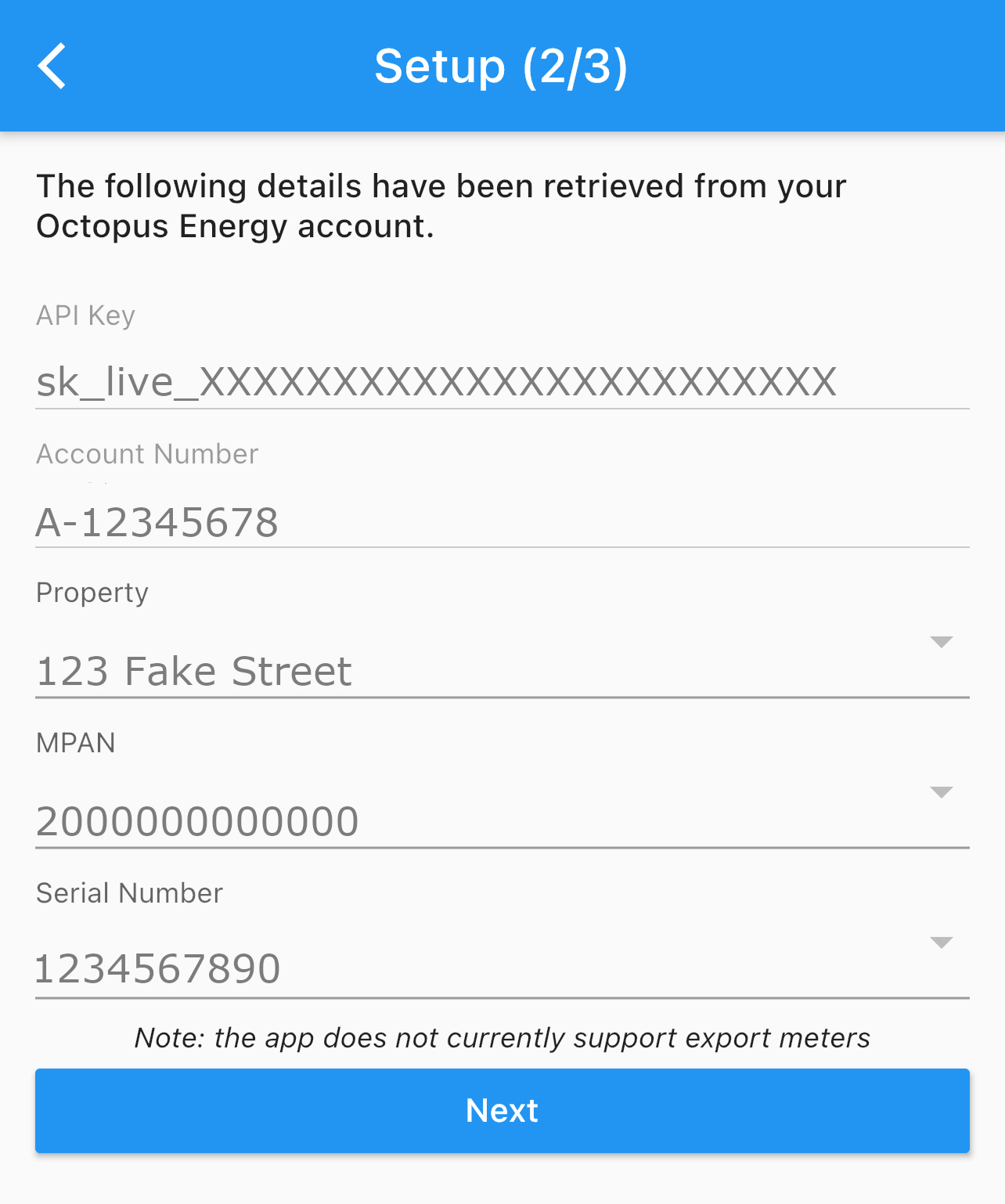
It isn't uncommon that you may have multiple serial numbers under a single MPAN. This can occur due to a new, upgraded meter or from a previous meter from a different energy supplier. If you do have multiple meters, select the one specified on the Octopus Energy Developer Dashboard.
Once all your details are correct in Step 2, you can press next. This will download any available consumption for your selected meter and allow you to begin selecting products in the final step.