Setting Up
Retrieving Your API Details
Octopus Compare relies on the Octopus Energy API, which is an interface that applications can easily access and retrieve data. The Octopus Energy API is freely available to anyone who would like to access their raw data, or other data related to Octopus Energy such as tariffs. The full details of the API can be found here, along with some examples of the responses: Octopus Energy v1 API
Some features of this API requires authentication to access data from your personal Octopus Energy account, which includes your meter information and consumption data. Rather than opting for an email and password, an 'API Key' is used which is randomly generated and can be refreshed whenever requested - this ensures that your email and password isn't available to 3rd party tools and in the case you believe someone is using your data, you can refresh your key. This key gives 'read-only' permissions to 3rd parties and doesn't have the ability to change details on your account.
Octopus Compare requires that you have a valid smart meter linked with your Octopus Energy account. Without a smart meter (SMETS1 or SMETS2), you will currently be unable to use the application as consumption data is not available via the API.
Retrieving your credentials
Accessing your credentials is easy. First head to the Octopus Energy Developer Dashboard and log in using your email and password. You will be greeted with a page as shown below, which will contain a section containing your API Key and Account Number. Further down the page you will also find the MPAN and Serial Number of your Electricity Meter (and Gas Meter if applicable).
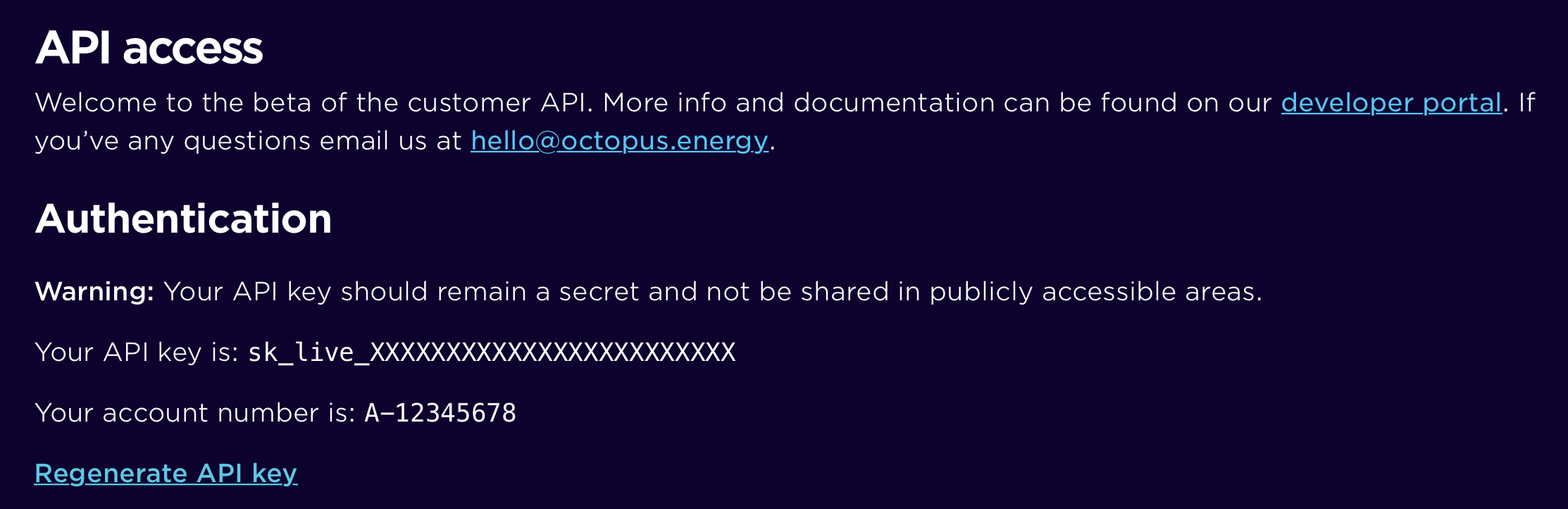
For now, keep this page open as Octopus Compare uses both your API Key and Account Number to retrieve your details.
Entering Your API Details
Now that you have your API Details from the Octopus Energy Dashboard, you can use these to begin setting up Octopus Compare.
We have made this process easy by only requesting both your API Key and Account Number - we'll do the rest. Copy both pieces of information into your Octopus Compare app. With your API Key in the first field and Account Number in the second, press 'Next'.

Choosing your meter
If successful, you will be presented with the next step in which you can selected the desired Electricity Meter that you would like to use with Octopus Compare. Don't worry if every field is greyed out, this just means that these are the only details available for those fields.
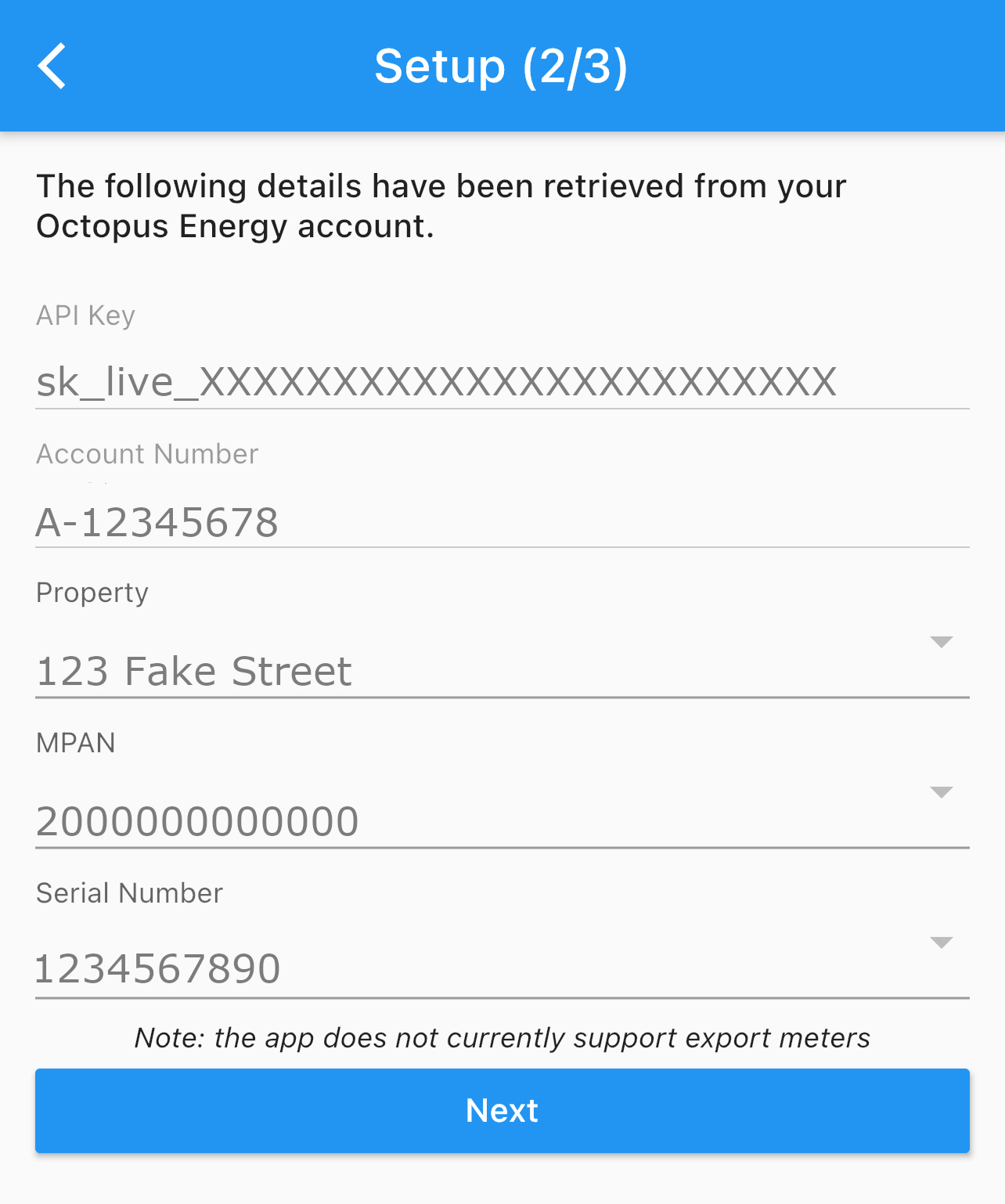
It isn't uncommon that you may have multiple serial numbers under a single MPAN. This can occur due to a new, upgraded meter or from a previous meter from a different energy supplier. If you do have multiple meters, select the one specified on the Octopus Energy Developer Dashboard.
Once all your details are correct in Step 2, you can press next. This will download any available consumption for your selected meter and allow you to begin selecting products in the final step.
Downloading Products
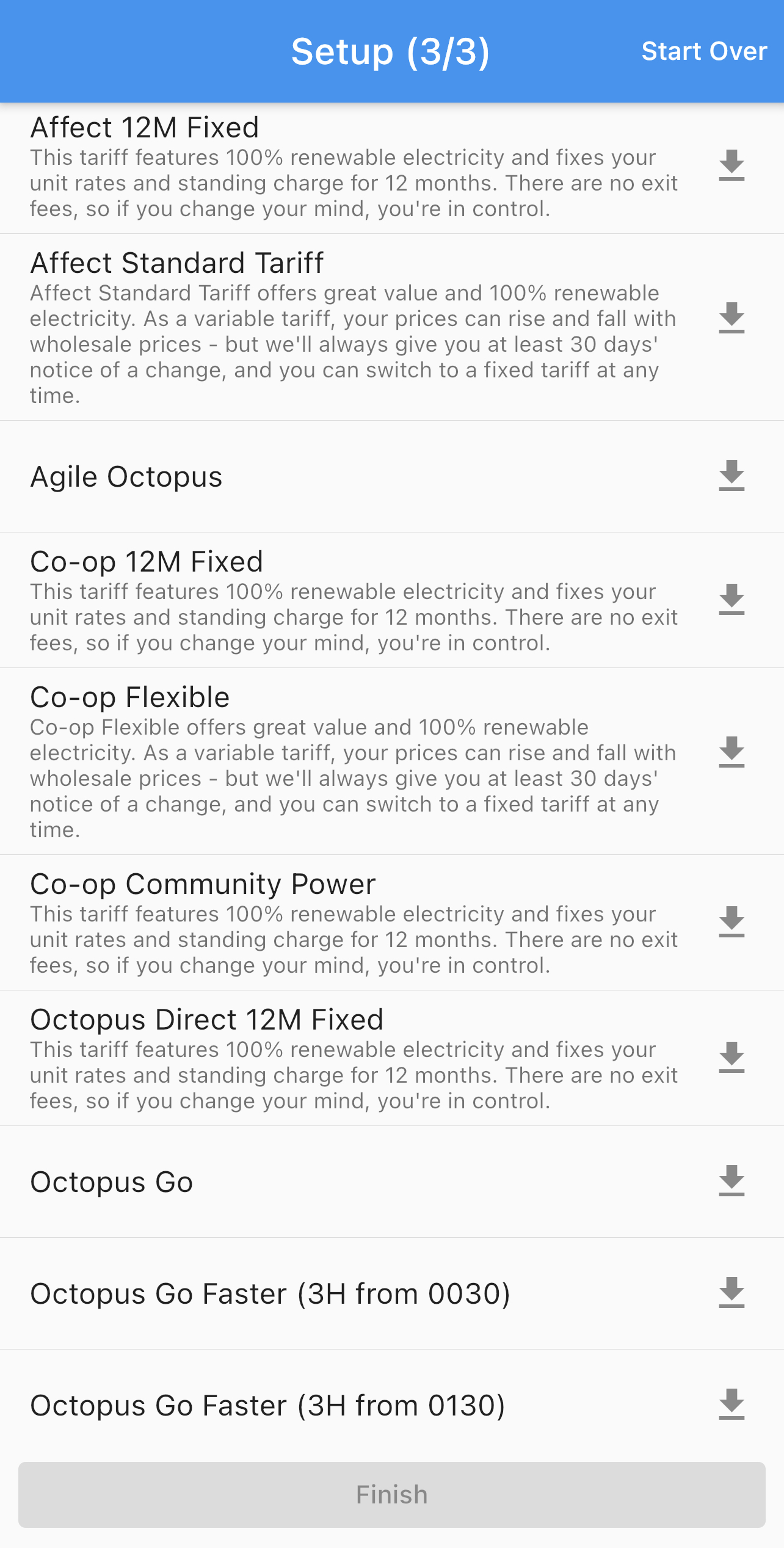
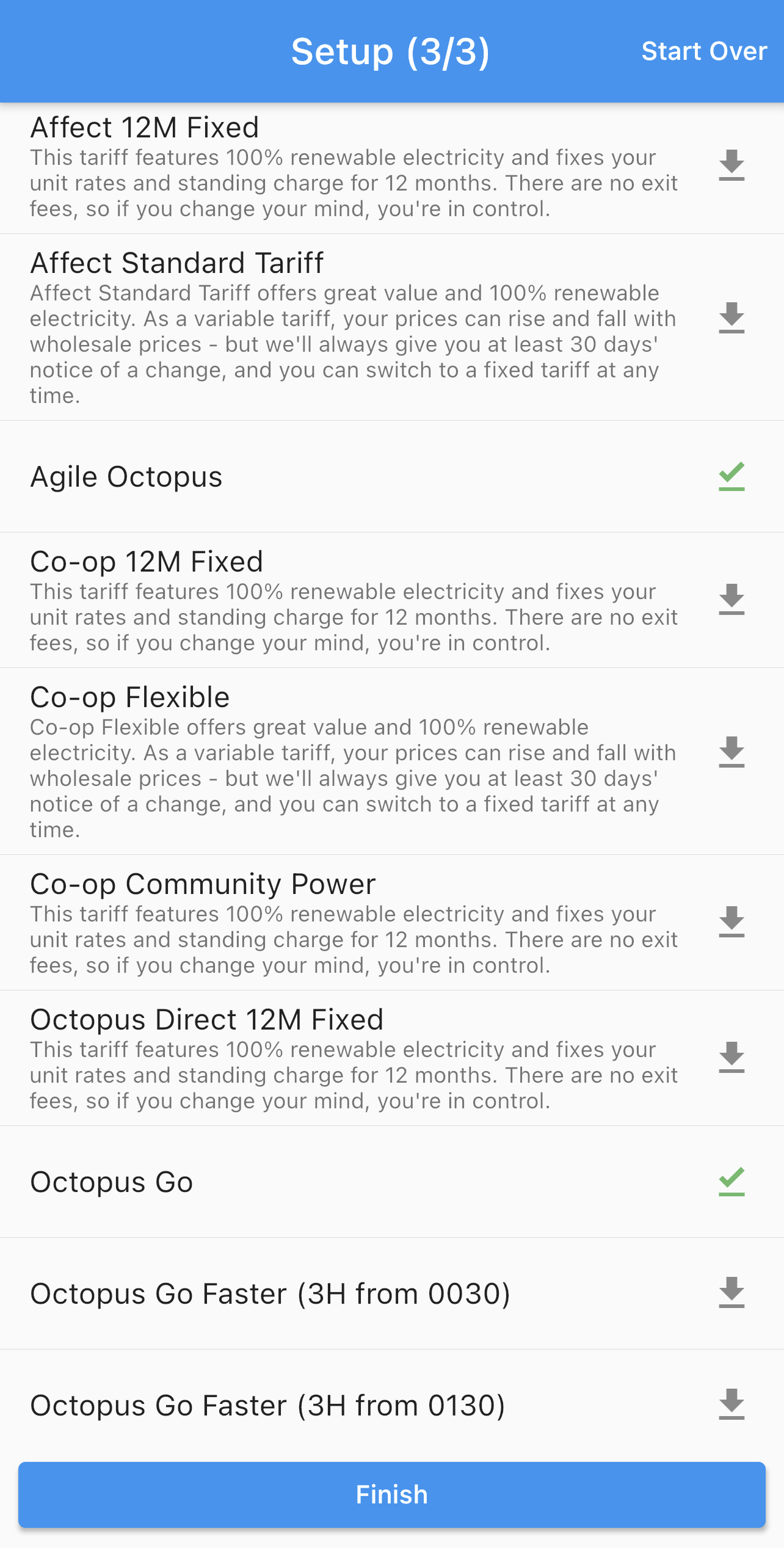
Now that all your consumption data has been retrieved, you can begin downloading products which can be used to compare against each other. Typically the most popular 2 tariffs are Agile Octopus and Octopus Go, but you can select any products that you would like. To complete this stage, you must select at least 2 products. You can always add or remove more products later within settings.
Once downloaded, you will see a visual confirmation in the form of a green checkmark next to the downloaded product. In the case that you receive an error, please get in contact with us at the using our contact form.
Downloading products can sometimes take a while and some products may take more storage space than others.
 |
 |
Once you've pressed finish, you have completed the setup and can now start using Octopus Compare.